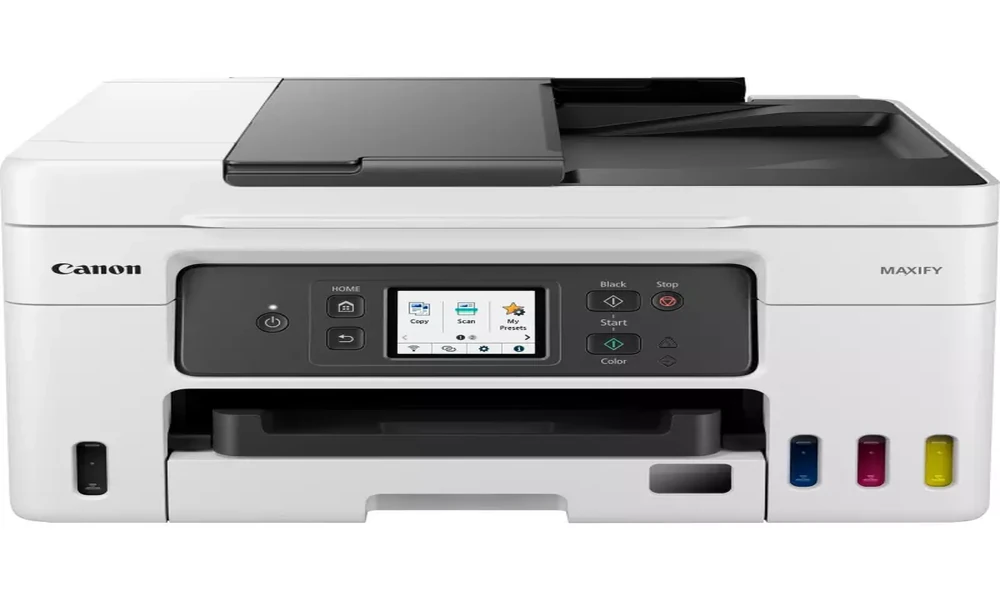
Canon’s inkjet lineup splits cleanly into two families. The PIXMA series targets home users with compact units that print photos, documents, and creative projects. The MAXIFY series targets small business users with larger paper trays, faster print speeds, and pigment ink for documents that resist water and fading. Each series has its own documentation, and the differences matter when setting up a printer or choosing the right ink. This guide walks through using Canon inkjet manuals effectively for either family.
Identifying Your Canon Inkjet Model
Canon model numbers follow a consistent format. PIXMA TS series are tabletop home models. PIXMA TR series add fax and ADF for home offices. PIXMA G series are the MegaTank refillable ink models. MAXIFY GX series are the business MegaTank models. The model number appears on the front of the unit or on a label inside the cartridge access door.
A documentation library like Canon printer manuals PDF makes it simple to find the matching guide for any PIXMA or MAXIFY model, including older units that no longer appear on the main support site.
PIXMA Home Series Setup
PIXMA manuals start with unpacking and initial setup. Every PIXMA ships with protective tape on the print head carriage, packing material in the paper trays, and shipping locks on the ink cartridges. The manual shows exactly which pieces to remove and in what order. Missing one of them causes paper jams or print head errors on the first attempt.
Wireless setup uses the Canon PRINT app or direct WPS connection. The manual covers both methods and includes troubleshooting steps for the most common setup failures. USB installation is straightforward once the driver is downloaded from Canon’s site or installed from the bundled software.
MAXIFY Business Series Features
MAXIFY manuals add chapters that PIXMA documentation does not need. Two paper trays with independent paper sizes, the auto duplex feeder for double sided scanning, scan to email and scan to network folder configuration, fax setup with broadcast lists, and security features such as PIN protected print queues all appear in MAXIFY documentation.
Office tip: MAXIFY models support shortcut buttons on the touch screen that combine multiple settings into one tap. The manual explains how to configure shortcuts for tasks like printing two sided color documents on letter paper.
The manual also covers Canon PRINT Business app integration, cloud printing through services like Google Drive and Dropbox, and the embedded web interface for administrative settings.
Ink Cartridges and MegaTank Systems
Cartridge based PIXMA models accept specific cartridge sets. The manual lists the cartridge numbers and explains the difference between standard yield and XL high yield options. For photo printing, the manual recommends specific photo paper and color profile combinations.
PIXMA G series and MAXIFY GX series use refillable MegaTank systems where ink bottles refill internal tanks. The manual covers the initial ink charge, which takes several minutes and uses a meaningful share of the first set of bottles. Skipping or interrupting the initial charge can damage the print head.
Print Head Maintenance
Canon inkjet print heads can need alignment after a cartridge change or a long period of disuse. The manual walks through the automatic alignment routine, the nozzle check pattern that reveals any clogs, and the head cleaning cycles ranging from light to deep cleaning.
The manual is honest about head cleaning trade offs. Each cleaning cycle uses ink, so the manual recommends starting with the lightest cleaning and escalating only if the nozzle check still shows problems. Heavy cleaning every week wastes ink and shortens cartridge life.
Photo Printing on PIXMA Models
PIXMA documentation includes detailed photo printing chapters. The manual lists supported photo paper sizes and types, recommended Canon papers for each photo style, and the color profile installation process for users who edit photos in dedicated software.
Borderless printing settings, photo paper margins, and high quality print modes all appear with example settings. The manual explains the impact of print quality settings on speed and ink consumption.
Troubleshooting Common Issues
Canon manuals translate error codes into plain language. A B200 error indicates a specific print head issue that may respond to a cleaning routine or may require service. P03, P07, and similar codes each have documented causes and fixes. Paper feed problems get their own section with diagrams of where to check.
The manual also explains how to reset the printer to factory settings when other troubleshooting steps have not worked. The reset procedure varies by model, so following the documented sequence for your specific unit is important.
Documentation for Older Canon Models
Canon supports printers for many years. Older models eventually leave the official site, but the documentation survives in independent archives. Sites such as manualmachine.com keep manuals for older PIXMA and MAXIFY models available for download. A decade old PIXMA still has its full setup and service documentation accessible.
For users with refurbished or second hand Canon inkjets, the manual lookup is the fastest way to confirm what features the printer has and how to set them up properly.
Final Thoughts
Canon inkjet manuals turn capable hardware into something you can use confidently. Setup proceeds cleanly, ink systems get charged correctly, hidden features become accessible, and the maintenance routines that keep print heads working appear in a single source. Find your exact model number, retrieve the matching document, and refer back whenever a question comes up. The investment of a few minutes pays back across the years a Canon inkjet stays in service.